P-Diagram to FMEA Workflow
Some organizations may choose to start their workflow with the P-Diagram and remain in that "brainstorming" phase as long as possible, then use the P-Diagram as the starting point for the FMEA. Starting in Version 2025, this workflow is enabled as explained here.
What's Changed? Starting in Version 2026 the Ancestry feature is available for P-Diagram records transferred to FMEAs.
Important: These options are not available if the FMEA structure is Causes Before Effects.
Record Correspondences
Certain P-Diagram elements are considered to correspond to certain FMEA record types, as follows:
|
P-Diagram Element |
FMEA Record Type |
|
Ideal Response |
Function |
|
Error State |
Failure |
|
End Effect |
Effect |
|
Noise Factors |
Cause |
|
Control Factors |
Control or Action |
|
Input Signal |
Function Requirement |
Enhancing the workflow
If you will be associating P-Diagram records to an FMEA, you should enable the following fields in the Interface Style to make the workflow more productive:
- On the Properties page, enable:
- End Effect element. Failure to enable this element will result in empty records and/or the need to create dummy records to complete the association process, depending on the FMEA structure that the project uses.
- On the Column Options page enable:
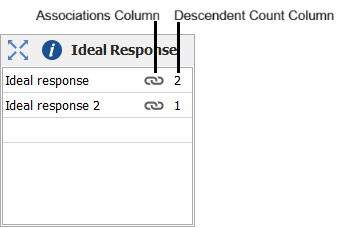
- Show Associations Column to quickly see which P-Diagram elements are associated with other elements.
- Show Descendant Count Column to show which P-Diagram elements have descendant records in the item's FMEA.
Associating Records
P-Diagram elements are simply lists of records without any inherent connection between them. In preparation for transferring these records into the FMEA, which has a hierarchical structure (e.g., a failure "belongs" to a specific function, an effect "belongs" to a specific failure, etc.), you will need to create associations between P-Diagram records that indicate which records "belong" to each other.
To create an association, select a P-Diagram record and then choose P-Diagram > Records > Add/Edit Associations.

The Add/Edit Associations window that appears will allow you to select the record(s) that "belong" to the current record. This window will be configured for the specific P-Diagram element that you're working with.
The focal record appears at the top left of the window. (This is the record for which you are currently defining associations.) The remainder of the window displays all of the records that can be associated with the focal record. Records that are already associated with the focal record are shown as already selected.
- Select the record(s) that you want to associate with the focal record:
- To add a new record, click Add/Edit Items to open a window where you can create new record(s), then close the window. You can then select the record(s) that you added.
- To limit the records shown in a group, use the filters in that group.
- If a selected record shows a green arrow
 , you can click the green arrow to make it the new focal record. The window then displays the records that you can associate with the new focal record. All changes that you have made in the window are immediately saved when you click the right arrow.
 - You can click the Back button
 to go up a level and continue associating other records to the focal record. All changes that you have made in the window are immediately saved when you click the Back button.
 - To immediately save the associations you have made up to that point, click the Save icon. You can continue to work in the window.
- When you are done making associations, click OK to save the changes.
- You can click Cancel to close the window without saving your changes. Note, however, that this will NOT "unsave" changes that have already been saved by clicking the Save icon or any of the green arrows.
Available Associations
The available associations depend on the project's FMEA structure:
- For the Effects Before Causes FMEA structure you can create the following associations:
|
Selected Record Type |
Record Types that Can Be Associated to Selected Record |
|
Ideal Response (FMEA Function) |
Error State (FMEA Failure) and Input Signals (FMEA Function Requirement) |
|
Error State (FMEA Failure) |
End Effect (FMEA Effect) |
|
End Effect (FMEA Effect) |
Noise Factor (FMEA Cause) |
|
Noise Factor (FMEA Cause) |
Control Factor (FMEA Control or FMEA Action) |
- For the Grouped Effects and Causes FMEA structure you can create the following the associations:
|
Selected Record Type |
Record Types that Can Be Associated to Selected Record |
|
Ideal Response (FMEA Function) |
Error State (FMEA Failure) and Input Signals (FMEA Function Requirement) |
|
Error State (FMEA Failure) |
End Effect (FMEA Effect) and Noise Factor (FMEA Cause) |
|
Noise Factor (FMEA Cause) |
Control Factor (FMEA Control or FMEA Action) |
You cannot create associations for input signals, functions, functional requirements, non-functional requirements, and control factors as these record types do not have a direct association of their own with another P-Diagram record type.
In the P-Diagram, any record that has at least one associated record will be marked with
the  icon in the Associations column, if that column is displayed. You can double-click the icon to open the Add/Edit Associations window.
Transferring Records to an FMEA
After creating the associations between the P-diagram records, you can transfer specific Ideal Responses (Functions) with their associated records to an FMEA by choosing P-Diagram > Records > Transfer to FMEA.

In the Transfer P-Diagram to FMEA window:
- Select which functions to transfer to the FMEA.
- For each control factor select whether the record will be transferred as an action or as a control. You can make the choice for each record individually or click a column heading to apply the choice to all associated control factors. If this option is not available, it means that the database has been configured to transfer all control factors as a specified record type. This setting, available in Version 25.0.2 and later, is located in the Database Settings window.
- Click OK. If an FMEA already exists then the selected functions will be appended to the end of it. If one does not already exist then a new FMEA is created and the selected functions are added to it.
Starting in Version 2026, in the P-Diagram, any record that has at least one transferred record will have a number shown in the Descendent Count column on the far right side of the record row, if that column is enabled. You can double-click the number to open the Descendent Count window to track the descendent records. (Refer to Ancestry for more information.)
Important: If you had transferred P-Diagram records to FMEAs in Version 2025 and then upgraded the database to Version 2026, there will be no ancestry recorded as ancestry for P-Diagrams was introduced in Version 2026. If you want to track the records using ancestry, you must delete the FMEA and recreate it by transferring the records from the P-Diagram, then making any other desired changes.