Aircraft Health Monitoring Analysis
MSG-3 guidelines divide aircraft systems and powerplant analysis into multiple levels. Level 1 analysis requires answering a set of questions for failure effect categorization (FEC) [link]; level 2 analysis involves considering another set of questions to determine the specific types of tasks that will be applicable and effective for a given failure cause. At the end of these two levels of analysis, you will have one or more “classic tasks” defined for the cause.
In alignment with the MSG-3 Revision 2022 Vol 1 guideline, level 3 analysis logic enables the use of Aircraft Health Monitoring (AHM) analysis. It facilitates the evaluation of failure causes within AHM capabilities, including those related to lubrication and servicing, as well as the identification of degradation and hidden failures.
The AHM Analysis window allows you to answer the MSG-3 questions that are applicable for the current cause in order to determine which AHM task records, if any, need to be created. The AHM task can fully satisfy the requirements of the existing classic task selected through level 2 analysis or it can be an addition to such.
Traceability between an AHM task and its relation to a classic task can be documented with the Remarks or Task Description fields.
Note: If the FEC value is safety-related (i.e., the value is 5 or 8) then AHM Analysis should be avoided for the cause per the MSG-3 guideline. You may continue and perform an AHM analysis if desired.
IMPORTANT: AHM analysis is available only when the AHM capability is identified in the cause record and there is already an existing classic task assigned to the cause.
To open the AHM Analysis window from the Task Selection window click AHM Analysis on the ribbon.

The top section of the window displays the AHM questions aligned to the MSG-3 guidelines. If the question is not applicable for the current AHM analysis, it will be shown in light gray text and the Yes/No field will be disabled.
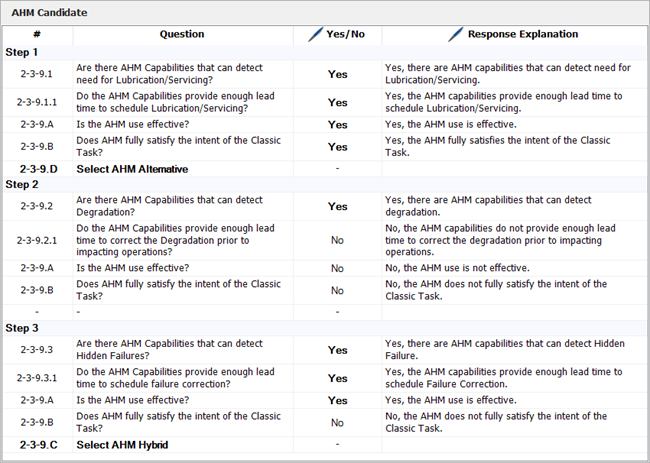
It is recommended to answer the applicable questions in the specified order until the team has identified the AHM response that will be applicable and effective to address the current issue. Click inside the Yes/No column to toggle between the two options. If desired, you can use the Response Explanation column to document the reasons why the team chose each answer.
Tip: To save time and ensure consistency, each MPC database stores default text that can be used to automatically populate the explanation fields in the AHM Analysis window. Each time you answer one of these questions, you may choose whether to use the default text or replace it with something that is more appropriate for the current situation (see Managing Default Responses). Even if you choose not to accept the default text, you still have the option to reuse any explanation that has already been set for another similar record in the database. To view a list of previously defined explanations, click the Select Existing icon next to the input field to open the Select Existing Text window.
There are three steps in the questions, allowing you to identify the need for AHM tasks for detection of a need for lubrication/servicing, for detection of degradation and for detection of hidden failures. At the end of each step, a recommended course of action may be displayed—either a hybrid AHM task (i.e., to be used in addition to a classic task), an alternative AHM task (to be used instead of a classic task) or no recommendation if no applicable AHM task has been indicated. These results also appear in the AHM Results section of the Task Selection window.
After answering the questions, you can enter additional information in the Summary section below the questions.

Text entered here appears in the AHM Summary section of the Task Selection window.
The status bar at the bottom of the window displays the date/time of the last change to the AHM analysis and the user who made the change.