Import FIDES Settings
There are two things that you can do to import FIDES settings. You can:
- Import FIDES settings from another database.
- Import FIDES 2009 settings into FIDES 2022.
Importing FIDES Settings from another database
The Import FIDES Settings window makes it easy to import saved FIDES settings from another existing database at any time.
To access this window, first choose File > Manage Database > FIDES Settings Manager, then click the Import button at the bottom of the FIDES Settings Manager window.

In the Import FIDES Settings window, use the Select database to import from area to specify the database that contains the settings you wish to copy. Click the arrow to select from a list of recently accessed databases or click the browse button (…) to select any standard database (*.rsr26) or enterprise database connection file (*.rserp). The tree under Select Settings to Import will display all of the saved FIDES settings that are stored in the selected database, as shown next.
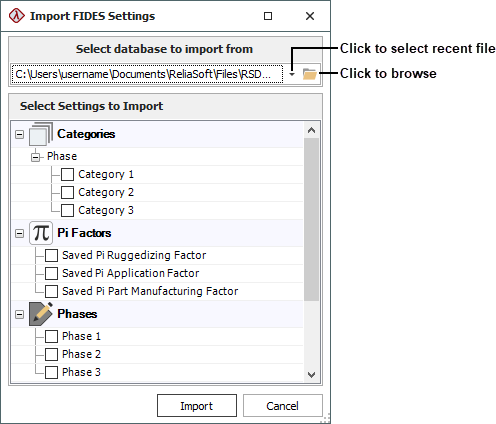
Select the check boxes for the settings you want to copy, and then click Import. Note that this is a one-time transfer of data from one database to another. If you later modify the settings in the original database, the changes will not affect any settings that have already been copied into other database(s).
Tip: You also have the option to maintain a collection of saved FIDES settings that will be populated automatically in each new database that you create. For details, see Default FIDES Settings for New Databases.
Importing FIDES 2009 Settings into FIDES 2022
To import FIDES 2009 settings into FIDES 2022, first choose File > Manage Database > FIDES Settings Manager, then click the Import button dropdown at the bottom of the FIDES Settings Manager window and choose the Import FIDES 2009 Settings into FIDES 2022 option.
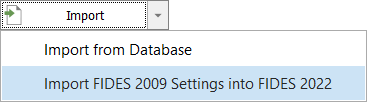
In the Import and Upgrade FIDES Settings window, use the Select database to import from area to specify the database that contains the settings you wish to copy. Click the arrow to select from a list of recently accessed databases or click the browse button (…) to select any standard database (*.rsr26) or enterprise database connection file (*.rserp). The tree under Select Settings to Upgrade will display all of the available saved FIDES 2009 settings that are stored in the selected database that can be upgraded and imported into the current database’s FIDES 2022 Settings, as shown next.
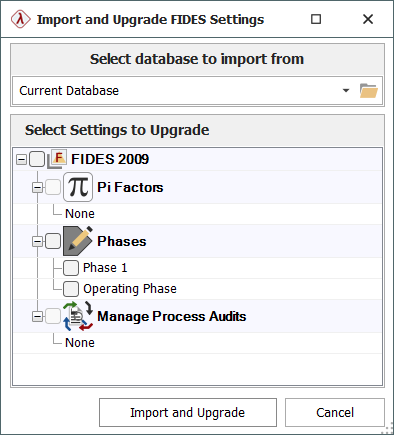
Select the check boxes for the settings you want to import/upgrade, and then click Import and Upgrade. Note that this is a one-time import/upgrade of the settings. If you later modify the settings for the original location; the changes will not affect any settings that have already been imported/upgraded into other location(s).
Some special considerations exist:
- "Pi Process, RF HF" factors will be changed to "Pi Process, RF/MW".
- If any phases are detected with a random vibration value of 0, you will be asked if you wish to update these to the new recommended minimum of 0.01.
- Pi Factors and Process Audits with answers will be changed to be set to have a user defined value instead.
- Answers to audit questions are not preserved.