Import 217Plus Settings
The Import 217Plus Settings window makes it easy to import saved 217Plus settings from another existing database at any time.
To access this window, first choose File > Manage Database > 217Plus Settings Manager, then click the Import button at the bottom of the 217Plus Settings Manager window.

In the Import 217Plus Settings window, use the Select database to import from area to specify the database that contains the settings you wish to copy. Click the arrow to select from a list of recently accessed databases or click the browse button (…) to select any standard database (*.rsr26) or enterprise database connection file (*.rserp). The tree under Select Settings to Import will display all of the saved 217Plus settings that are stored in the selected database, as shown next.
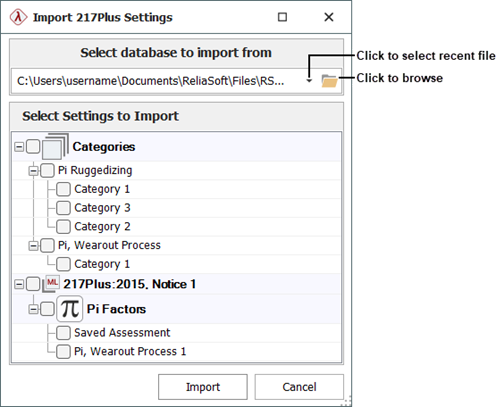
Select the check boxes for the settings you want to copy, and then click Import. Note that this is a one-time transfer of data from one database to another. If you later modify the settings in the original database, the changes will not affect any settings that have already been copied into other database(s).
Tip: You also have the option to maintain a collection of saved 217Plus settings that will be populated automatically in each new database that you create. For details, see Default 217Plus Settings for New Databases.